

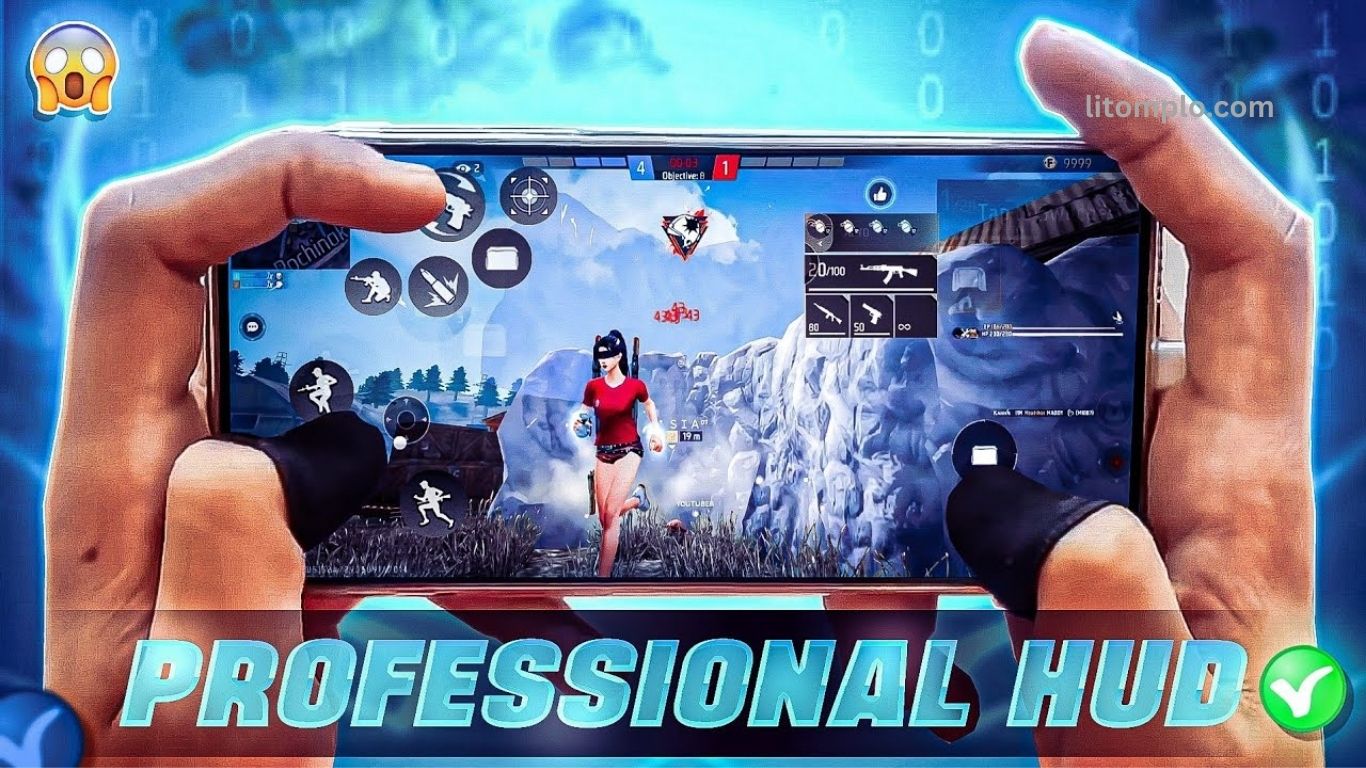
FF Custom HUD settings play a crucial role in mastering high-level competitive gameplay in Free Fire. A well-optimized HUD allows players to react faster, aim more accurately, and maintain better control during intense battles. By customizing button size, placement, and transparency, players can reduce hand movement and improve overall efficiency.
Competitive players rely on a clean and responsive HUD to execute quick shots, smooth movements, and precise skills without distraction. Whether you focus on close-range fights or long-distance engagements, the right HUD setup enhances performance and consistency. Understanding how to fine-tune your FF Custom HUD can give you a clear advantage over opponents and help you perform confidently in ranked matches and tournaments.
Read More: Free Fire BR Rank Season Ending Date: Latest Updates
What is the Custom HUD in Free Fire?
Custom HUD in Free Fire refers to the on-screen layout of control buttons, joysticks, and interactive elements that players can customize for better gameplay. Inside Settings → Controls → Custom HUD, players can move, resize, and adjust the transparency of key action buttons such as fire, jump, crouch, scope, and gloo wall. A well-arranged HUD improves reaction speed, reduces mis-taps, and delivers smoother control during intense gunfights.
Free Fire also provides built-in HUD codes, allowing players to import ready-made layouts like popular two-finger setups. These codes save time, but players should still fine-tune button placement based on screen size and personal finger movement for maximum competitive performance.
Why HUD Configuration Is Critical for Competitive Play
In casual matches, default settings may work, but competitive gameplay demands precision where even small delays can cost a fight. A well-optimized HUD provides a clear competitive advantage for several reasons:
- Faster Reaction Speed: Easily reachable buttons reduce movement time and help you respond instantly in high-pressure situations.
- Stronger Muscle Memory: A fixed and familiar layout allows your fingers to act automatically, minimizing hesitation and accidental taps.
- Improved Situational Awareness: A clean, uncluttered HUD frees up screen space, giving you a clearer view of enemies and surroundings.
- Adaptive Control: Custom layouts let you prioritize key actions like firing, scoping, or crouching based on your playstyle.
- Consistent Performance Across Devices: A personalized HUD ensures smooth gameplay even when switching screens or devices.
Many competitive players find that refining their HUD is the final step before noticeable improvements in consistency and elimination counts.
Choosing the Right Finger Layout: 2-Finger, 3-Finger, or 4-Finger
Your Custom HUD should match how many fingers you use while playing, as each layout affects speed, control, and multitasking. Below is a clear breakdown to help you choose the best option for competitive play.
2-Finger Layout
Uses the left thumb for movement and the right thumb for actions.
Pros
- Simple and beginner-friendly
- Works well on smaller screens
Cons
- Limited multitasking
- Harder to perform advanced moves simultaneously
Best HUD Tips
- Keep the fire button large and close to the right thumb
- Place jump and crouch nearby without crowding
- Position scope/ADS close but clearly separate
- Slightly increase button transparency for better visibility
3-Finger Layout
Adds an extra finger (usually the right index) for faster actions.
Pros
- Better multitasking
- Faster combat combinations
Cons
- Takes time to learn
- Needs better hand coordination
HUD Tips
- Separate fire and weapon-switch buttons
- Keep scope and crouch within quick reach
- Reduce size of rarely used buttons
- Practice in training mode to build muscle memory
4-Finger Layout
Preferred by high-level and tournament players.
Pros
- Maximum control and speed
- Allows multiple actions at once
Cons
- Requires a larger screen and practice
- Poor layout can feel overwhelming
HUD Tips
- Balance buttons across thumbs and index fingers
- Group utilities like gloo walls carefully
- Use high transparency with clear visibility
- Fine-tune regularly in training mode
Choosing the right finger layout can significantly boost consistency, reaction speed, and overall competitive performance.
Best Practical HUD Settings: Step by Step
Follow this practical, competitive-focused setup to fine-tune your Free Fire Custom HUD for maximum control and consistency.
Step 1: Access the Custom HUD
- Open Settings → Controls → Custom HUD
- Select Edit / Customize
- Optionally import a HUD code, then refine it to match your screen and playstyle
Step 2: Understand Your Screen & Grip
- Larger screens (around 6.2–6.8 inches) offer better spacing and control
- Decide your grip style (two hands, finger claw, or touch only)
- Avoid overcrowding buttons based on your finger reach
Step 3: Set Up the Movement Joystick
- Place it in the lower-left quadrant
- Use a medium-to-large size for smooth movement
- Reduce transparency to 30–50%
- Keep slight distance from screen edges to avoid accidental swipes
Step 4: Configure the Fire Button
- Position it in the lower-right area
- Increase size to 70–80% for reliable taps
- Keep transparency around 60–70%
- Place slightly above the bottom edge to avoid blocking vision while aiming
Step 5: Scope (ADS) & Weapon Switch
- Place ADS close to the fire button for quick access
- Keep weapon switch reachable without shifting grip
- For 3–4 finger layouts, position weapon switch on mid or upper-right
- Enable quick-switch options if available
Step 6: Jump, Crouch, Slide
- Keep jump near the fire button
- Place crouch/slide slightly left or above jump
- Reduce prone button size if rarely used
- Maintain moderate button size for quick access without clutter
Step 7: Gloo Wall, Grenades & Utilities
- Place on the right side but away from the fire-thumb zone
- Gloo wall slightly above or diagonally from fire
- Grenades near gloo wall but clearly separated
- Lower transparency to 20–40% to reduce distractions
Step 8: Maintain Clear Vision
- Avoid blocking the center and upper-center screen
- Ensure buttons don’t overlap sightlines during gunfights
- Keep minimap visible and unobstructed
A clean, balanced HUD improves reaction time, reduces mistakes, and helps you stay focused in high-pressure competitive matches.
Final Touches: Spacing, Size, and Transparency
Fine-tuning your HUD comes down to small adjustments that prevent mistakes and improve comfort during intense fights.
- Spacing: Keep enough distance between buttons to avoid mis-taps in high-pressure moments. If you often press the wrong button, slightly increase spacing until each action feels deliberate and controlled.
- Size Adjustments: Enlarge frequently used buttons like fire and movement, while shrinking less-used controls to free up valuable screen space.
- Transparency: Higher transparency reduces visual clutter, while lower transparency makes buttons easier to spot. Balance visibility and clarity based on what feels natural to you.
- Test in Training Mode: Always test your HUD in the Training Ground before ranked matches. Practice movement, firing, recoil control, jumps, crouches, gloo walls, and grenades, then refine until everything feels smooth and instinctive.
These final tweaks help turn a good HUD into a competitive-ready setup.
Sample Recommended HUD Layouts by Finger Setup
Here are example HUD layouts to help you start, which you can further refine based on comfort and screen size.
2-Finger Layout
- Joystick: Lower-left, large, ~50% transparency
- Fire: Lower-right, large, ~70% size
- Scope/ADS: Above fire button
- Jump: Just above or left of fire
- Crouch/Slide: To the left or below jump
- Gloo Wall: Right side, above jump/crouch
- Grenades/Throwables: Above gloo wall or upper-right
- Weapon Switch: Near fire, slightly above for thumb access
3-Finger Layout
- Left Thumb: Controls joystick (lower-left)
- Right Thumb: Primary fire (lower-right)
- Right Index: Weapon switch (mid-right) and scope/ADS (upper-right)
- Jump/Crouch/Slide: Distributed between right thumb and index finger
- Gloo Wall & Throwables: Upper-right or upper-central right, reachable by index
4-Finger Layout
- Left Thumb: Joystick (lower-left)
- Right Thumb: Fire (lower-right) or jump (slightly above fire)
- Right Index Finger 1: Crouch/Slide (beside or above jump)
- Right Index Finger 2: Scope/ADS (upper-right)
- Second Index or Middle Finger: Weapon switch (mid-right)
- Gloo Wall & Throwables: Upper-right or upper mid-right
- Tip: Keep fingers from overlapping to maintain smooth, fluid movements and avoid accidental presses
These sample layouts provide a strong starting point. Adjust button size, spacing, and transparency according to your grip and playstyle for maximum efficiency in competitive matches.
Advanced HUD Tweaks & Competitive Tips
Once your base HUD layout is set, these advanced adjustments can help you maximize performance in competitive Free Fire matches.
Lock Your HUD Layout
- Avoid frequent changes—muscle memory develops when controls stay consistent.
- Stability allows faster, instinctive reactions under pressure.
Test Recoil and Movement
- Training Mode Practice:
- Fire long bursts and check if your thumb blocks the screen—adjust fire button if needed.
- Strafe while shooting to ensure smooth joystick movement without thumb interference.
- Test jump + shoot or crouch + shoot combos for quick accessibility.
Prioritize Frequent Actions
- Keep fire, scope/ADS, weapon switch, and gloo wall easily reachable.
- Less-used buttons (emotes, skills, pets) can be smaller or hidden to reduce clutter.
Master Training Ground
- Spend 10–15 minutes daily on:
- Quick weapon switches and headshot drills
- Jump/crouch while strafing
- Gloo wall placement under pressure
- Grenade/throwable practice in tight spaces
- Train exclusively with your HUD layout to build finger memory.
Match Sensitivity With HUD
- Large or high-positioned fire buttons may require higher sensitivity for faster aim.
- Slower, controlled aiming pairs well with smaller or lower-positioned buttons.
Keep Your Screen Clear
- Avoid overlapping buttons and excessive clutter.
- Use minimal size and appropriate transparency to maintain visibility of enemies and the map.
Consider Device & Grip
- Screen size, aspect ratio, and hand posture affect reach and comfort.
- Adjust HUD if switching devices to maintain performance consistency.
Ergonomics & Finger Fatigue
- Keep buttons within natural thumb/finger reach.
- Avoid long stretches or awkward angles during extended ranked sessions or tournaments.
Clip and Review Gameplay
- Record matches and analyze deaths caused by mis-taps or control errors.
- Adjust HUD positions to prevent recurring mistakes and refine performance.
These advanced tweaks ensure your HUD is not just functional but optimized for high-level competitive gameplay, improving reaction time, accuracy, and overall match consistency.
Common HUD Mistakes & How to Avoid Them
Configuring your HUD incorrectly can cost crucial seconds in competitive play. Here are common pitfalls and solutions:
- Buttons Too Close Together: Causes mis-taps.
Solution: Increase spacing between buttons for comfortable reach. - Fire Button Too Small: Hard to hit under pressure.
Solution: Enlarge to around 70–80% for reliable firing. - Important Buttons Hidden or Overly Transparent: Leads to missed actions.
Solution: Keep primary buttons clearly visible; reduce transparency for less-used controls. - Frequent Layout Changes: Disrupts muscle memory.
Solution: Lock your layout for at least a week; adjust only if necessary. - Skipping Training Mode: Fingers don’t adapt to the HUD.
Solution: Practice daily in Training Ground to build muscle memory. - Over-Reliance on HUD Codes: Imported layouts rarely fit your device perfectly.
Solution: Use codes as a starting point, then customize to your screen and grip. - Screen Clutter: Blocks vision and slows reactions.
Solution: Shrink or hide unnecessary buttons and maintain clean HUD edges.
Proper attention to these details ensures your HUD supports quick, precise, and fluid gameplay.
SEO-Friendly Headings & Keywords for Free Fire HUD Content
To boost search visibility and attract competitive Free Fire players, use these keyword-rich headings naturally in your content:
- Best Custom HUD Settings for Competitive Free Fire
- Free Fire HUD Layout 2025 Guide
- Free Fire 2-Finger, 3-Finger, 4-Finger HUD Comparison
- Free Fire Competitive HUD Tips and Tricks
- Free Fire Custom HUD Code Import & Adjustment
- How to Optimize Free Fire Controls for Ranked Mode
- Free Fire Advanced HUD Tweaks for Tournaments
- Common HUD Mistakes in Free Fire and How to Fix
- Free Fire Muscle Memory HUD Training Routine
Using these headings consistently while naturally integrating the keywords in paragraphs ensures better SEO coverage and helps your content reach players searching for competitive HUD setups and gameplay tips.
Step-by-Step HUD Layout Adjustment Workflow
Follow this workflow to set up and optimize your Free Fire HUD for competitive play:
- Open Free Fire → Go to Settings → Controls → Custom HUD
- Choose an Import Code (optional) — e.g., 2-finger HUD code as a starting point
- Joystick: Place at lower-left, size ~65–70%, transparency ~40%
- Fire Button: Place at lower-right, size ~80%, transparency ~60%
- Scope / ADS: Position just above fire, size ~60%, transparency ~50%
- Jump Button: Slightly above fire; Crouch/Slide: next to jump
- Gloo Wall: Mid-right; Throwables: above gloo wall
- Weapon Switch: Mid-right for 3-finger, upper-right for 4-finger layout
- Unused Buttons: Emotes, social, and less-used controls → shrink or move to a corner
- Save Layout and enter Training Ground
- Practice: Movement + fire + scope + weapon switch until actions feel natural
- Fine-Tune: After a few games, adjust spacing if mis-taps occur or move buttons closer if slow to reach
- Lock Layout: Once comfortable, don’t change it for at least a week and continue practicing
This systematic approach ensures your HUD is tailored for fast reactions, muscle memory, and consistent competitive performance.
Frequently Asked Questions
What is a Custom HUD in Free Fire?
A Custom HUD is your on-screen layout of buttons, joysticks, and interactive elements. You can move, resize, and adjust transparency to improve control and reaction time during gameplay.
Which finger layout is best: 2-finger, 3-finger, or 4-finger?
- 2-Finger: Beginner-friendly, simple, limited multitasking
- 3-Finger: Balanced for competitive play, better combos and faster actions
- 4-Finger: Advanced, maximum control, preferred by tournament players
Can I use imported HUD codes?
Yes, HUD codes save time as starting points. However, you should fine-tune button placement, size, and transparency based on your device and finger reach.
How important is HUD spacing and size?
Crucial for accuracy. Too-close buttons cause mis-taps, too-small buttons slow reactions. Adjust spacing and size until movements feel natural.
Should I change my HUD often?
No. Frequent changes disrupt muscle memory. Lock your layout for at least a week once comfortable.
How can I practice using my HUD efficiently?
Use Training Ground daily to practice movement, firing, aiming, gloo-wall placement, weapon switches, and combos. Focus on developing muscle memory.
Does screen size affect HUD setup?
Yes. Larger screens allow more spacing and extra fingers for 3–4 finger layouts, while smaller screens may work better with 2-finger setups.
How do I match sensitivity with HUD layout?
Button placement and size affect how far your thumb moves for aiming. Adjust sensitivity accordingly—larger buttons may require higher sensitivity for faster aim.
What are common HUD mistakes to avoid?
- Buttons too close or small
- Overlapping or cluttered layout
- Excessive transparency on important buttons
- Changing layout too frequently
- Skipping practice
Conclusion
A well-optimized Custom HUD is essential for competitive Free Fire gameplay. By carefully adjusting button placement, size, spacing, and transparency, players can improve reaction time, accuracy, and fluidity during high-pressure battles. Choosing the right finger layout—2-finger, 3-finger, or 4-finger—combined with consistent practice in Training Ground, builds strong muscle memory and ensures smooth execution of complex actions like firing, movement, weapon switching, and gloo-wall placement.
