

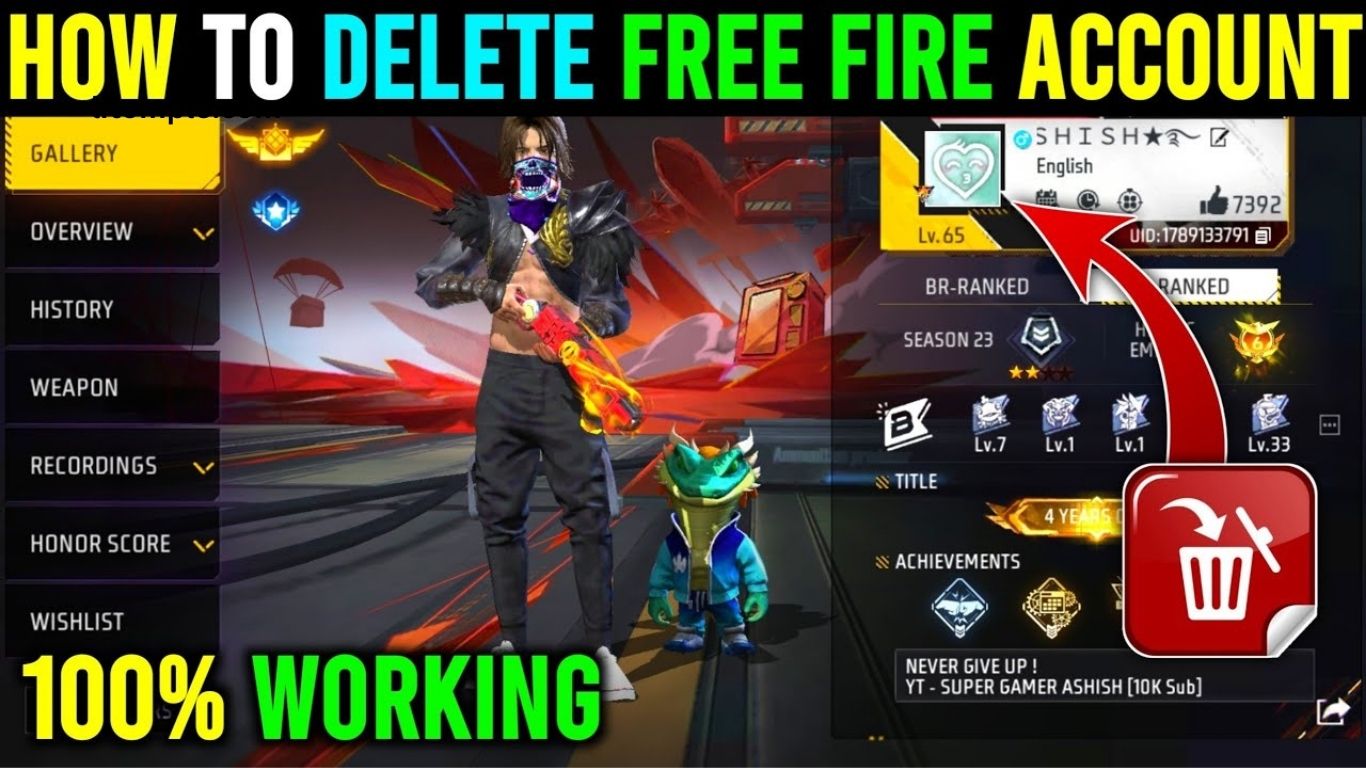
Free Fire, your account photo is more than just a small image; it reflects your in-game identity. Whether you’re a competitive player, a casual gamer, or a newcomer, your profile picture is the first thing other players notice. Updating or removing it allows you to showcase your personality, maintain privacy, or refresh your account’s appearance.
Many players often ask how to change or remove their Free Fire profile photo without affecting progress or stats. In this guide, we’ll provide step-by-step instructions, address common issues, and offer tips for selecting the perfect avatar. By following this guide, managing your Free Fire profile photo will become quick, simple, and hassle-free.
Why Your Free Fire Account Photo Matters
Your Free Fire (FF) account photo is more than just a small image it represents your in-game identity. Friends, teammates, and opponents see it every time they interact with you, making it an important part of your presence in the game. A well-chosen profile photo can:
- Make your account instantly recognizable
- Reflect your personality or gaming style
- Enhance your in-game credibility
- Help friends locate you quickly on crowded leaderboards
At the same time, there may be moments when you want to remove your profile photo entirely, whether for privacy or to give your account a fresh start. Fortunately, Free Fire allows both updating and removing your profile photo easily, giving you full control over your account’s look and identity.
Read More: Free Fire Master Rank Guide: Tips to Achieve Grandmaster Fast
How to Change Your Free Fire Account Photo
Updating your Free Fire (FF) account photo is quick and easy. Follow these simple steps for a smooth process:
Launch Free Fire
Open the Free Fire app on your device. Ensure you have a stable internet connection to prevent interruptions during the update.
Access Your Profile
Tap your avatar located in the top-left corner of the main screen. This opens your profile page, where your current account photo, username, and in-game stats are displayed.
Select the Avatar
Click on your current account photo. Free Fire will provide options to change or edit your profile image.
Choose a New Photo
You have two options:
- Select from default avatars: Free Fire offers a wide variety of in-game avatars and character faces.
- Upload a custom image: Some versions allow you to upload an image from your device’s gallery. Make sure the image meets Free Fire’s guidelines for content, size, and format.
Confirm Your Selection
Once you’ve chosen a new photo, confirm your selection. Your profile will update immediately, and your new account photo will be visible to all players.
How to Remove Your Free Fire Account Photo
There may be times when you want to remove your account photo instead of replacing it. Free Fire makes it easy to revert to the default avatar. Follow these steps:
Open Your Profile
Access your profile by tapping your avatar in the main menu, just like when changing your photo.
Click the Edit Option
Select the “Edit” or “Change Avatar” button to manage your profile image.
Choose the Default Image
Instead of uploading a new image, select the default avatar provided by Free Fire.
Save Changes
Confirm your choice. Your custom photo will be removed, and your profile will now display the default Free Fire avatar.
Tips for Choosing the Perfect Free Fire Account Photo
Your Free Fire (FF) account photo is more than just an image—it shapes how other players perceive you in the game. Here are some tips to pick the perfect avatar:
Reflect Your Personality
Choose a photo that represents your gaming style or personality. Whether your style is fierce, fun, or mysterious, your avatar should match your in-game persona and make your profile stand out.
Use High-Quality Images
Avoid blurry or pixelated images, as they reduce the visual appeal of your profile. High-resolution images make your account look polished and professional.
Avoid Copyrighted Content
Using copyrighted images can cause issues. Stick to your own creations or Free Fire’s approved avatars to stay safe and compliant with the game’s rules.
Keep It Friendly
Since your account photo is visible to the entire Free Fire community, avoid offensive or inappropriate images. A friendly and appealing avatar improves how others interact with you in-game.
Common Issues When Changing or Removing Free Fire Account Photos
Although updating or removing your Free Fire (FF) account photo is usually straightforward, players sometimes encounter problems. Here’s how to troubleshoot the most common issues:
Image Upload Failure
If your photo fails to upload, check your internet connection and ensure the file is in a supported format—JPG or PNG are typically accepted by Free Fire.
Changes Not Reflecting
Profile updates may take a few minutes to appear due to server delays. Restarting the game often resolves the issue and displays your new avatar correctly.
Profile Locked
If your account is under verification or temporarily restricted, changing your profile photo may be disabled. Wait until the restriction is lifted before attempting to update your avatar.
Image Size Limit
Ensure your custom image meets Free Fire’s size requirements. Oversized images may fail to upload, so resizing or compressing the file can help.
Why Some Players Prefer Removing Their Free Fire Profile Photo
Not every Free Fire player wants a flashy or personalized avatar. Here are common reasons why some choose to remove their account photo:
Privacy Concerns
Minimizing personal information online is a common safety practice. Removing your profile photo helps maintain anonymity and protects your identity.
Fresh Start
After changing usernames, switching teams, or rebranding their profile, players may remove their photo to signal a clean slate and start fresh in the game.
Neutral Appearance
Some players prefer a simple default avatar to maintain a neutral presence, avoiding attention or distractions during competitive gameplay.
Free Fire Account Photo Best Practices
To keep your Free Fire (FF) account attractive, safe, and compliant, follow these best practices:
Update Regularly
Changing your profile photo periodically keeps your account looking fresh and engaging to friends and opponents.
Avoid Offensive Content
Use neutral or friendly images to prevent community complaints and maintain a positive presence in the game.
Backup Custom Avatars
If you create a unique custom avatar, save a copy on your device. This allows you to reuse it later without having to recreate it.
Stay Within Game Guidelines
Always follow Free Fire’s rules for profile images. Adhering to guidelines prevents potential account penalties and ensures a safe gaming experience.
Frequently Asked Questions
Can I change my Free Fire account photo without affecting my stats?
Yes! Changing your FF account photo does not affect your progress, rank, or stats. Your in-game achievements remain intact.
How do I remove my Free Fire profile photo?
To remove your photo, access your profile, tap Edit Avatar, and select the default image. Confirm the change to revert to the original avatar.
What image formats does Free Fire support?
Free Fire typically supports JPG and PNG formats. Make sure your image meets the size and content guidelines to avoid upload errors.
Why is my new profile photo not showing?
Profile updates may take a few minutes due to server delays. Restarting the game usually resolves this issue.
Can I use custom images from the internet?
Yes, but make sure the image is copyright-free, appropriate, and follows Free Fire’s content guidelines. Using copyrighted images may cause issues.
Why would someone remove their profile photo instead of changing it?
Players may remove their photo for privacy, a fresh start, or a neutral appearance during competitive play.
Conclusion
Your Free Fire account photo is more than just a small image it represents your in-game identity and influences how other players perceive you. Whether you choose to update, remove, or customize your avatar, making informed decisions ensures your profile remains appealing, safe, and compliant with Free Fire’s guidelines.
By following best practices such as using high-quality images, reflecting your personality, avoiding offensive content, and backing up custom avatars you can maintain a profile that stands out. Additionally, understanding common issues, troubleshooting tips, and the reasons some players remove their photos helps you manage your account efficiently.
